Quick Connect
Quick Connect uses Meta's official WhatsApp Embedded Signup flow to connect a WhatsApp Business phone number to plemeo.ai in a few clicks. The whole flow takes a few minutes and works for both numbers that are new to WhatsApp Business and numbers that are already used in the WhatsApp Business app on a phone (Coexistence).
Before you start
You need:
- A user account in plemeo.ai with permission to open the Apps section.
- An organization where Quick Connect is enabled. If your admin has not set up the Meta App credentials yet, the Quick Connect tab will say "WhatsApp Embedded Signup is not configured yet. Please contact your administrator." See Admin setup.
- A Facebook account with admin rights on a Meta Business Portfolio that owns (or can create) a WhatsApp Business Account.
- A phone number that you can either verify by SMS / call now (new number) or that is already used in the WhatsApp Business app (Coexistence).
TIP
If you currently use the WhatsApp Business app on your phone, do not delete the app or de-register the number first. Quick Connect's Coexistence flow lets you keep the app and add API access on top.
Step 1 — open the WhatsApp app
- In plemeo.ai go to Apps in the side navigation.
- Find the WhatsApp card and click the gear / configure icon.
- The configuration modal opens with two tabs: Quick Connect (recommended, green badge) and Manual.
- Stay on Quick Connect.
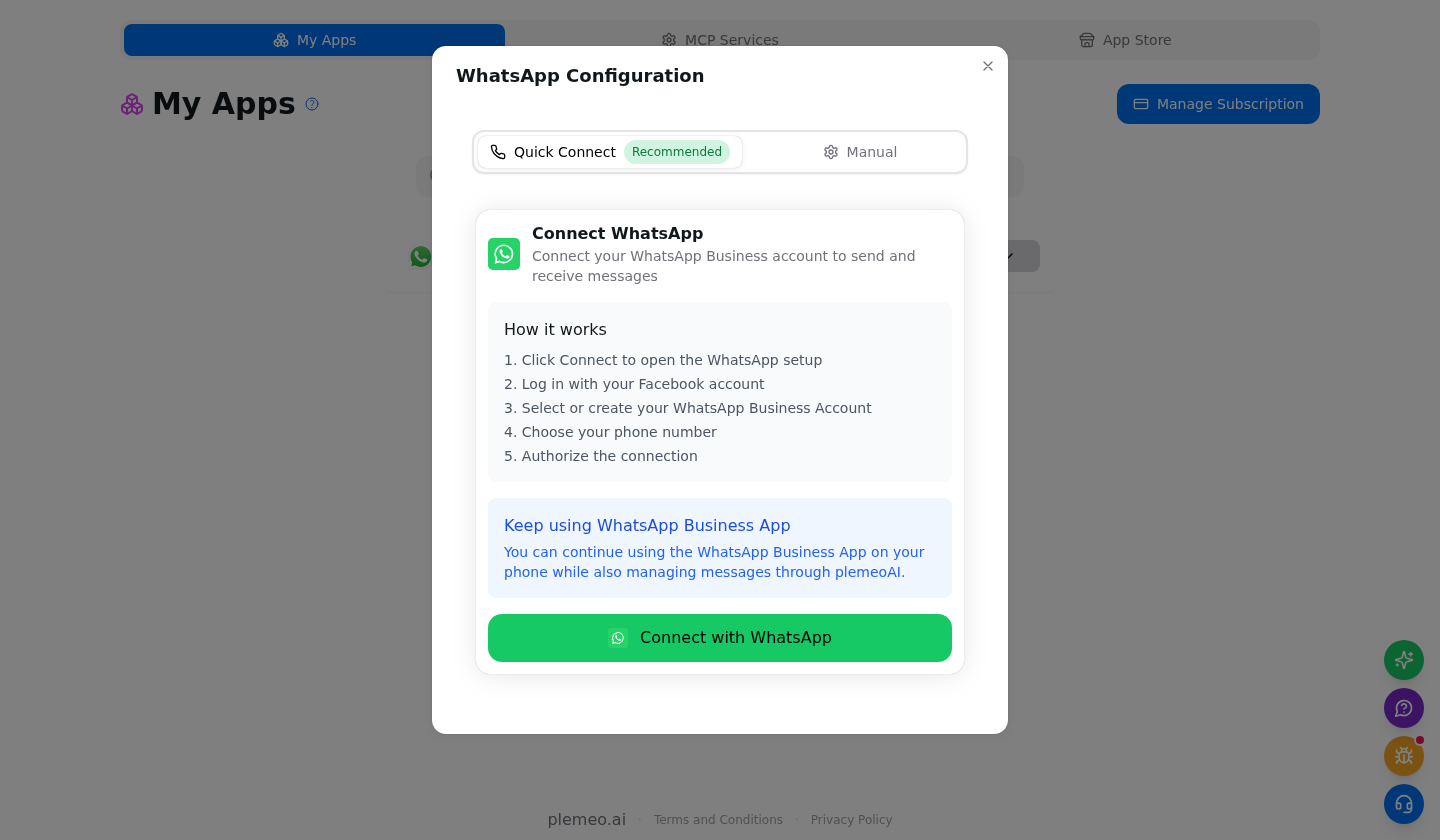
The card explains the five high-level steps Meta will guide you through, and a blue note confirms that the WhatsApp Business app on your phone will keep working.
WARNING
If you previously connected via the Manual tab, the Quick Connect tab will instead show: "You are currently connected via manual configuration. Disconnect it first in the Manual tab to use Quick Connect."
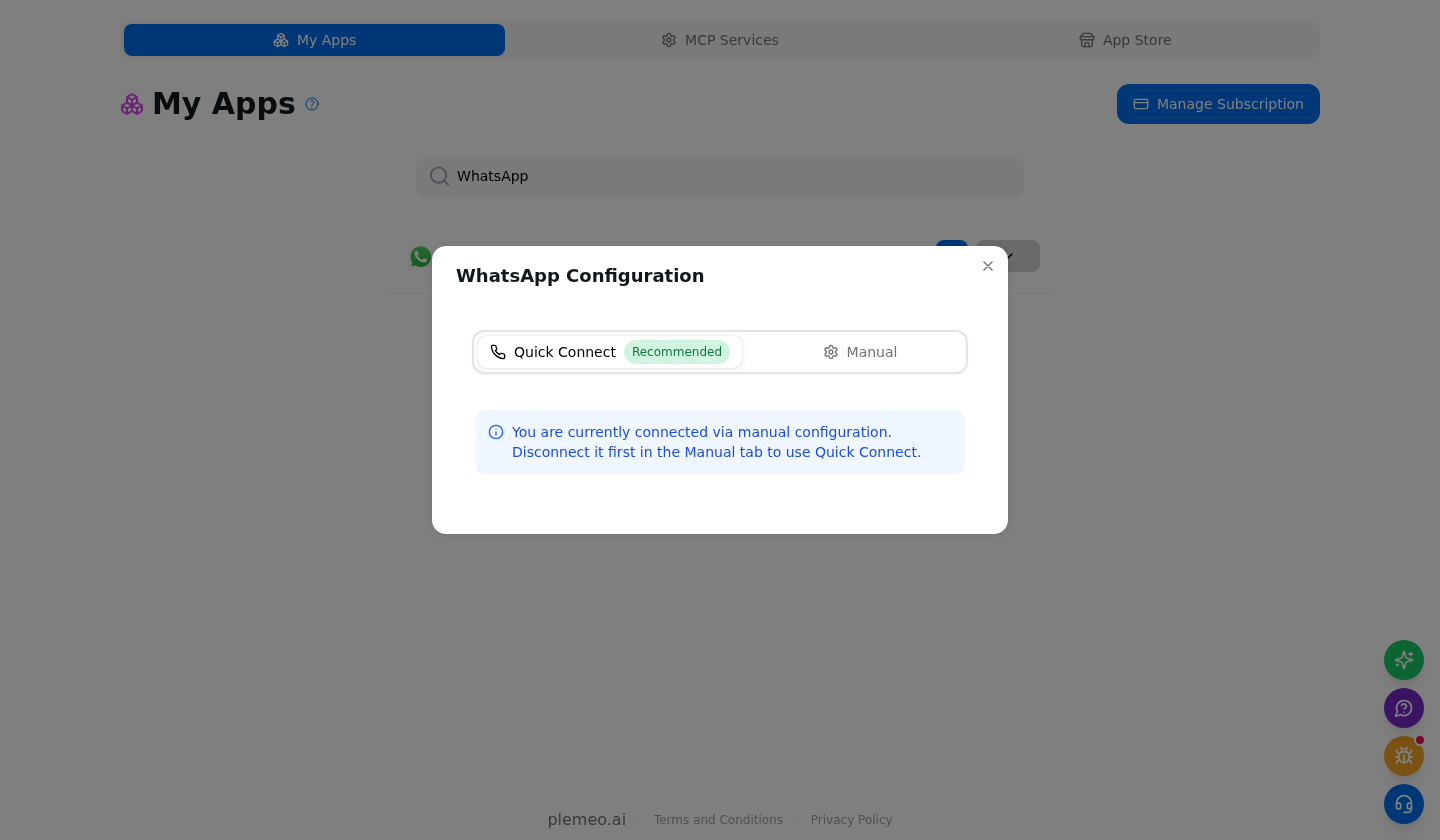
Switch to the Manual tab, click Disconnect Account, then come back to Quick Connect.
Step 2 — launch the embedded signup
Click Connect with WhatsApp. A Facebook popup opens. Log in with the Facebook account that manages your Meta Business Portfolio, then continue to Step 3.
TIP
The popup is served entirely by Meta. plemeo.ai never sees your Facebook password — only the short-lived authorization code that comes back from Meta after you finish.
Step 3 — choose a setup path
Once you're logged in, Meta walks you through a guided wizard. The exact screens depend on whether you're connecting a brand new number or an existing WhatsApp Business app number.
Path A — number already used in the WhatsApp Business app (Coexistence)
If you tell Meta that the number is already in use in the WhatsApp Business app, the wizard switches to the Coexistence flow. The first screen lets you choose what to share with plemeo.ai:
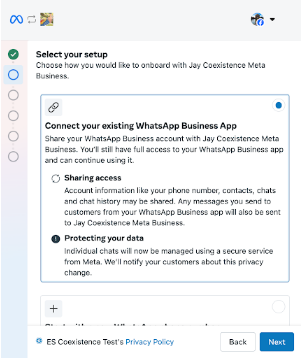
- Sharing access — your phone number, contacts, chats, and recent chat history will be available inside plemeo.ai.
- Protecting your data — Meta lets you customers know that messaging is now also handled through a secure service.
Continue with the next screen and confirm the phone number.
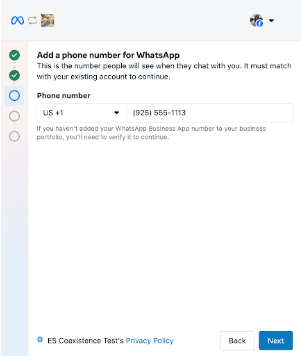
The number must match the one you currently use in the WhatsApp Business app.
Finally Meta shows a verification code that you must enter inside the WhatsApp Business app on your phone to confirm the link.
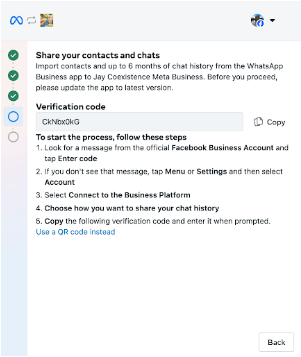
Open the WhatsApp Business app on your phone and follow the steps shown on the screen:
- Look for a message from the official Facebook Business Account.
- If you don't see it, tap Menu or Settings → Account.
- Select Connect to the Business Platform.
- Choose how you want to share your chat history.
- Paste the verification code from the popup.
INFO
After you finish, the WhatsApp Business app on your phone will refresh and show that the number is now connected to the Business Platform. You can keep using the app to send and receive messages — those will also be mirrored into plemeo.ai. plemeo.ai messages sent via the API will appear in the app too.
Path B — brand new number
If the number isn't used in the WhatsApp Business app, Meta will ask you to:
- Select or create a Meta Business Portfolio.
- Select or create a WhatsApp Business Account (WABA).
- Add and verify the phone number by SMS or voice call.
- Set the WhatsApp display name (subject to Meta's review).
- Authorize plemeo.ai to use the number on your behalf.
There's no Coexistence step in this path — the number is registered to Cloud API directly.
Step 4 — confirmation
When you finish, the popup closes automatically and the Quick Connect card refreshes to show:
- The connected display phone number.
- A green Connected chip.
- A blue Coexistence Mode chip if you onboarded an existing WhatsApp Business app number.
- Buttons to Refresh the status or Disconnect.
A new WhatsApp entry appears in the side navigation. Open it to send and receive messages — see Using the tool.
Disconnecting
In the Quick Connect tab, click Disconnect. A confirmation modal asks you to acknowledge that you'll need to reconnect to send and receive messages. Confirm to:
- Revoke the access token plemeo.ai stored for your number.
- Remove the WhatsApp tab from your navigation.
Coexistence disconnect
Disconnecting via Quick Connect tells plemeo.ai to stop using the number, but Meta keeps the WABA. To fully detach the number from the Business Platform on a Coexistence number, open the WhatsApp Business app on your phone, go to Settings → Account → Business Platform, and tap Disconnect Account.
Troubleshooting
| Symptom | Likely cause | What to do |
|---|---|---|
| "WhatsApp Embedded Signup is not configured yet. Please contact your administrator." | The Meta App credentials are not stored on the org. | Ask your admin to complete Admin setup. |
| "Facebook SDK not loaded. Please refresh the page." | The Facebook JS SDK was blocked or did not finish loading. | Disable strict ad / tracking blockers for this page and reload. |
| "Authorization failed. Please try again." | You closed the popup before finishing or denied a permission. | Click Connect with WhatsApp again and grant the requested permissions. |
| OAuth popup is blocked | Browser popup blocker. | Allow popups for development.plemeo.ai (or the production URL) and retry. |
| Quick Connect tab shows "You are currently connected via manual configuration." | A previous Manual connection is still active. | Switch to Manual → Disconnect Account, then return to Quick Connect. |
| The number works in plemeo.ai but the WhatsApp Business app warns about being disconnected | You picked the brand-new number path instead of Coexistence for a number that was already in the Business app. | Disconnect, then redo Quick Connect and confirm the existing-number path so Coexistence is enabled. |
What's next?
- Using the tool — start your first conversation.
- Message templates — reach out to customers outside the 24-hour window.
- Admin? See Admin setup to configure Quick Connect for your whole organization.