Usage in n8n
Once you have purchased PlemeoOCR and obtained your API key, you can integrate OCR functionality into your n8n workflows.
Add the Node
Steps to Add PlemeoOCR Node
- Open your n8n editor
- Add a new node to your workflow
- In the search bar, type "plemeo OCR" and select the node
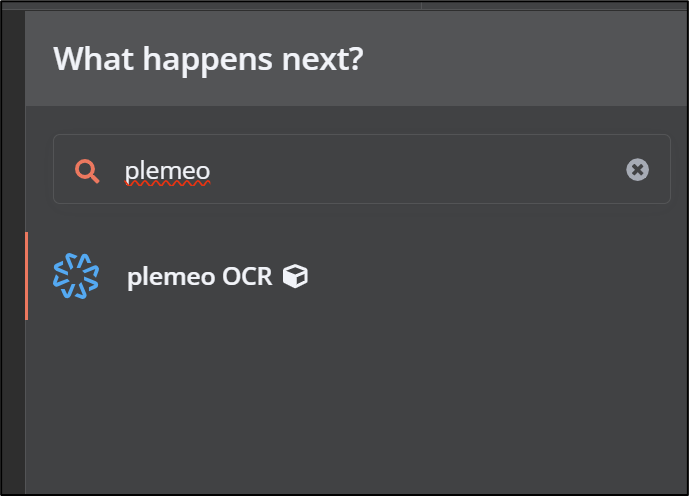 Adding the PlemeoOCR node in n8n
Node Location
The PlemeoOCR node will appear in your n8n node library under:
- Custom nodes (if installed as a community node)
- API/HTTP nodes section
- Search results when typing "plemeo" or "OCR"
Configure the Node
Preset Configuration
The following parameters are preset and do not need to be changed:
| Parameter | Value | Description |
|---|---|---|
| API Hostname | ai-test.plemeo.de | Server address for OCR processing |
| API Port | 8000 | Communication port |
| API Path | /process_ocr | Endpoint for OCR requests |
| Use HTTP | Deactivated | Uses HTTPS by default for security |
 PlemeoOCR node configuration panel
Required Configuration
You must configure the following:
API Key
- Field: API Key
- Value: Your personal API Key from the app description
- Location: Found in plemeo.ai → My Apps → PlemeoOCR
Configuration Steps
- Select the PlemeoOCR node in your workflow
- Open the node configuration panel
- Verify preset values (hostname, port, path)
- Enter your API Key in the designated field
- Save the configuration
Integration with Other Nodes
Common Workflow Patterns
1. File Input → OCR → Text Processing
[File Upload] → [PlemeoOCR] → [Text Analysis]2. Cloud Storage → OCR → Knowledge Base
[Dropbox/Google Drive] → [PlemeoOCR] → [Database Storage]3. Email Attachments → OCR → Automation
[Email Trigger] → [Extract Attachments] → [PlemeoOCR] → [Process Data]Compatible Nodes
PlemeoOCR works well with:
- File Input Nodes: Dropbox, Google Drive, FTP, HTTP Request
- Processing Nodes: Text manipulation, data transformation
- Output Nodes: Database storage, email notifications, webhooks
- Conditional Nodes: Switch, IF statements based on OCR results
Automatic Knowledge Base Storage
Background Processing
When PlemeoOCR processes a document, it automatically:
- Extracts text from the input document
- Stores the text in your plemeo.ai Knowledge Base
- Makes it searchable through the AI chatbot
- Returns the text to your n8n workflow for further processing
Best Practices
File Optimization
- Image Quality: Use high-resolution images for better OCR accuracy
- File Size: Optimize file sizes for faster processing
- Format Selection: PDF and PNG typically provide best results
Error Handling
- Add error handling nodes after PlemeoOCR
- Check confidence scores before using extracted text
- Implement retry logic for failed processing
Performance
- Batch Processing: Process multiple files efficiently
- Async Operations: Use n8n's async capabilities for large files
- Monitoring: Track processing times and success rates
What's Next?
- Example Workflow - See a complete Dropbox integration
- Troubleshooting - Resolve common issues
- Back to Overview - Return to PlemeoOCR main page