Getting Help & Reporting Issues
plemeo.ai provides a built-in support system that allows you to quickly report issues or request assistance directly from within the application. This guide explains how to use the support feature effectively.
Accessing Support
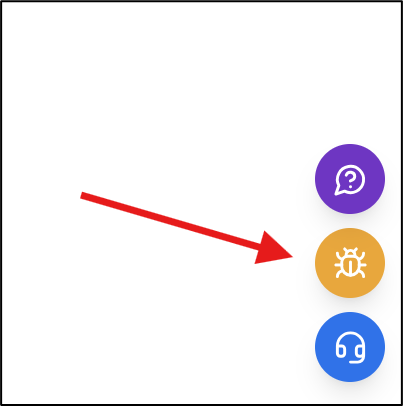
On every page of the plemeo.ai platform, you will find a set of action buttons located in the bottom-right corner of your screen. The Report Issue button (indicated by a yellow bug icon) provides direct access to our support system.
Quick Access
The support button is always visible and accessible, regardless of which page or feature you are currently using.
Submitting a Support Request
Step 1: Open the Report Dialog
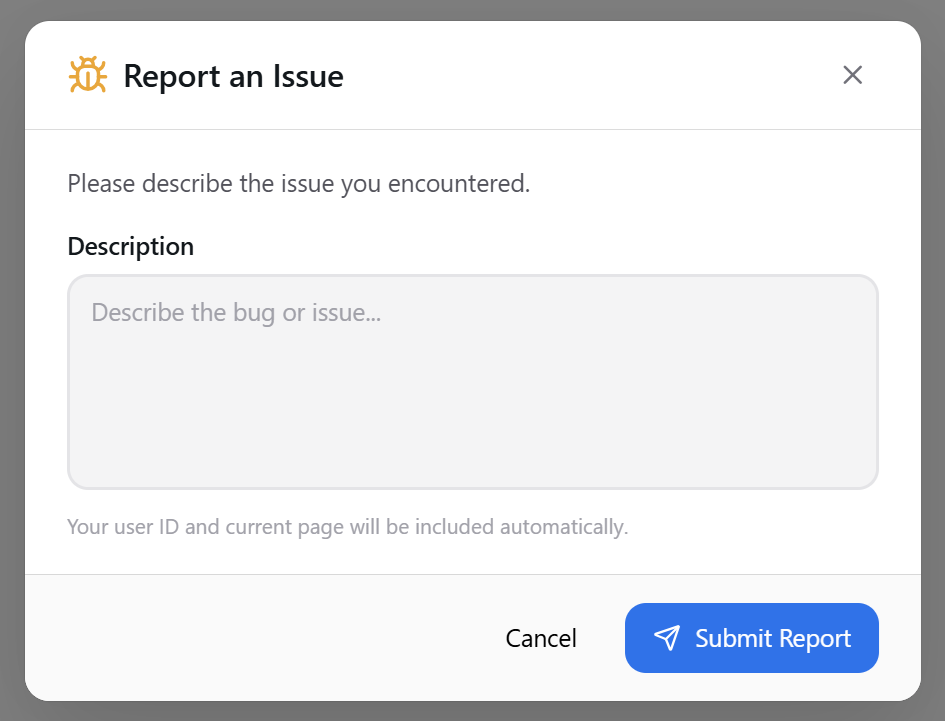
Click the yellow bug button in the bottom-right corner of any page. This will open the Report an Issue dialog.
Step 2: Describe Your Issue
In the Description field, provide a clear and detailed description of the issue you encountered. To help our support team assist you more efficiently, please include:
- What happened: Describe the unexpected behavior or error
- What you expected: Explain what should have happened
- Steps to reproduce: List the actions that led to the issue
- Any error messages: Include the exact text of any error messages you received
Automatic Information
Your user ID and current page URL are automatically included with your report. This helps our support team understand the context of your issue without requiring additional information from you.
Step 3: Submit Your Report
Once you have entered your description, click the Submit Report button to send your issue to our support team. You can click Cancel if you decide not to submit the report.
What Happens Next
After submitting your report:
- Confirmation: You will receive confirmation that your report has been submitted
- Review: Our support team will review your issue and any relevant system logs
- Response: You will be contacted via email if additional information is needed or when your issue has been resolved
Best Practices for Reporting Issues
| Do | Don't |
|---|---|
| Be specific about what went wrong | Submit vague descriptions like "it doesn't work" |
| Include relevant details and context | Include sensitive data like passwords |
| Describe the expected vs. actual behavior | Submit multiple reports for the same issue |
| Mention if the issue is recurring | Assume the support team knows your workflow |
Alternative Support Channels
In addition to the in-app support feature, you can also browse this documentation for answers to common questions.