Admin setup for Quick Connect
To make Quick Connect available to your users, an organization administrator stores your Meta App credentials once. After that, every user in the org can connect their own WhatsApp Business number from the Apps menu without you needing to touch tokens, webhooks, or phone number IDs.
Who needs this page?
This page is for organization admins (the Admin role in plemeo.ai). Regular users do not see the WhatsApp Embedded Signup configuration card.
What you'll set up
You need four values from a Meta Developer App that has WhatsApp Embedded Signup enabled:
| Field in plemeo.ai | What it is | Where it comes from |
|---|---|---|
| Meta App ID | Numeric ID of your Meta Developer App | Meta App Dashboard → top of the page |
| Meta App Secret | The app's client secret. Stored encrypted, never returned to the browser. | Meta App Dashboard → App settings → Basic |
| Embedded Signup Config ID | Numeric ID of your WhatsApp Embedded Signup configuration | Meta App Dashboard → WhatsApp → Embedded Signup → Configurations |
| Webhook Verify Token | A secret string that you also paste into Meta's Webhook configuration. plemeo.ai uses it to validate incoming webhook requests. | Free choice — pick a strong random string. |
Step 1 — make sure you have a Meta App with WhatsApp added
- Sign in to the Meta Developer Portal.
- Either pick an existing app or create a Business type app.
- From the app's left sidebar, click Add product and add WhatsApp.
If your business has not been verified yet, do that under App settings → Business verification before going live. For testing you can use Meta's test number; production sends always require a verified business and a registered phone number.
INFO
The plemeo.ai backend talks to Meta Graph API v21.0. Make sure the app is enabled for that version (the WhatsApp product handles this automatically).
Step 2 — create an Embedded Signup configuration
- In your Meta App, open WhatsApp → Embedded Signup.
- Click Create configuration.
- Pick the integration type that matches your business model (most plemeo.ai customers want Tech Provider with Cloud API).
- Enable Coexistence so users with an existing WhatsApp Business app on a phone can onboard without losing their data.
- Save and copy the Configuration ID that Meta shows.
Step 3 — configure the webhook
The webhook is what lets Meta deliver inbound messages and status updates to plemeo.ai.
In your Meta App go to WhatsApp → Configuration → Callback URL.
Set the Callback URL to your plemeo.ai webhook URL. For the production environment use:
https://<your-plemeoai-host>/webhookReplace
<your-plemeoai-host>with the public hostname of your plemeo.ai instance (for exampletenant.plemeo.aifor the SaaS Lite version, or your custom domain for OnPrem). The webhook handler is mounted at/webhookon the same host that serves the API.Set the Verify token to a strong random string. Save this value — you'll paste the same string into plemeo.ai in the next step.
Subscribe at minimum to the
messagesfield. If you use Coexistence also subscribe tohistory,smb_app_state_sync, andsmb_message_echoes.
WARNING
The verify token has to be byte-identical on both sides. Don't add accidental whitespace or quotes.
Step 4 — store the credentials in plemeo.ai
Sign in to plemeo.ai as an Admin and open Settings.
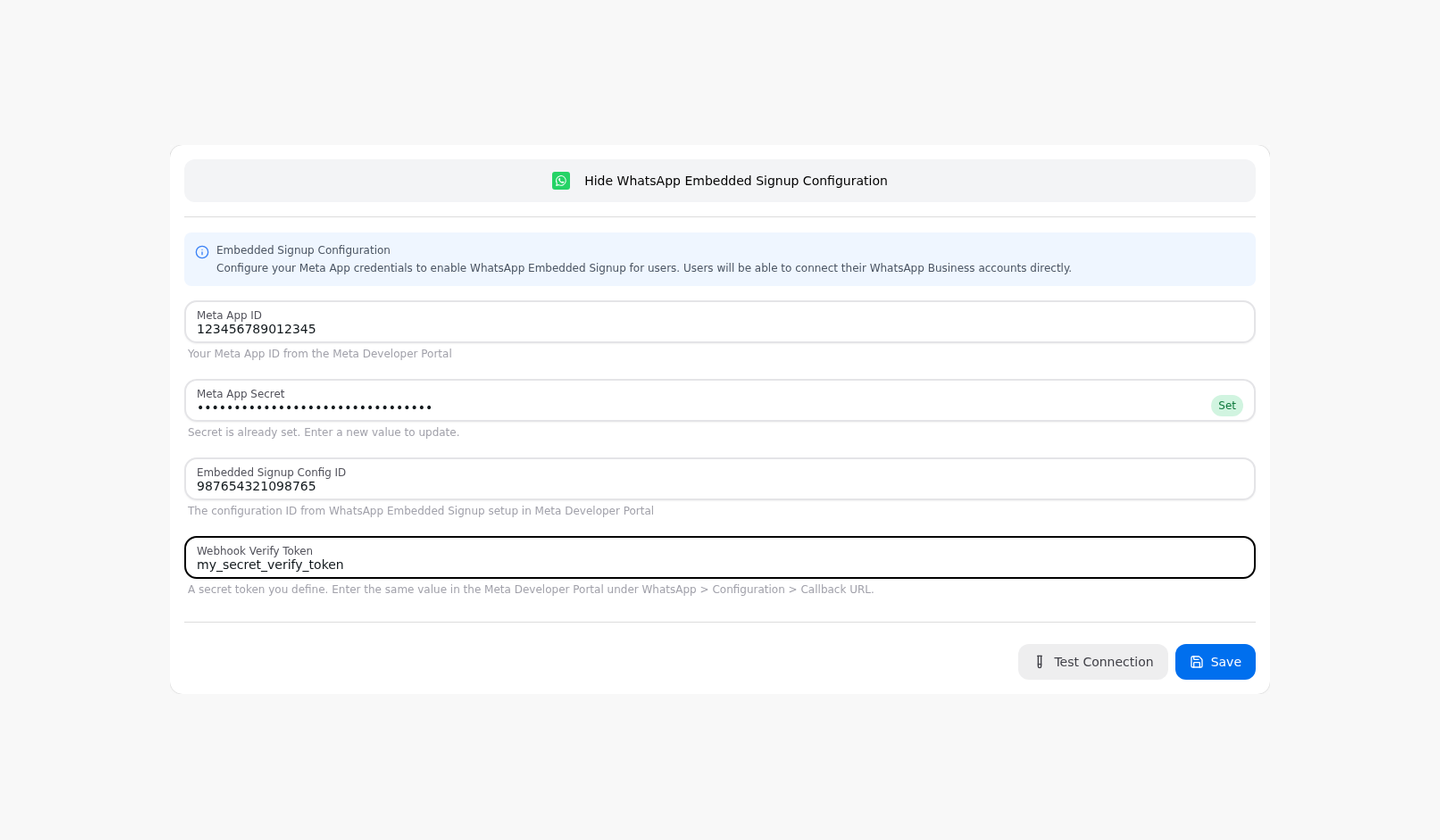
Scroll to WhatsApp Embedded Signup Configuration and click Show WhatsApp Embedded Signup Configuration.
Fill in the four fields:
- Meta App ID — the numeric App ID.
- Meta App Secret — paste the secret. plemeo.ai stores it encrypted; on subsequent loads the field shows a green Set chip and stays blank. Type a new value only if you need to rotate the secret.
- Embedded Signup Config ID — the configuration ID from step 2.
- Webhook Verify Token — the same random string you used in Meta's Callback URL configuration.
Click Test Connection to make sure the credentials are valid (plemeo.ai calls Meta and confirms the App ID resolves to a real app).
Click Save.
TIP
Test Connection verifies the App ID + Secret pair against Meta. It does not validate the Embedded Signup Config ID — that one is only checked when a user actually launches Quick Connect.
What users see after this
Once Step 4 is saved, every user in the org will see the Quick Connect tab populated with the Connect with WhatsApp button. They can connect their own number(s) without admin involvement.
If a user reports they see "WhatsApp Embedded Signup is not configured yet. Please contact your administrator.", double-check that:
- All four fields are saved (the Set chip is shown for Meta App Secret).
- The Embedded Signup Config ID matches the configuration in your Meta App.
- The user reloaded the Apps modal after you saved.
Rotating credentials
To rotate the Meta App Secret or change the Embedded Signup configuration:
- Open the WhatsApp Embedded Signup Configuration card again.
- Update the field(s) and click Save. The previous secret is overwritten on the backend.
- Existing user connections are not invalidated by rotating the App Secret — Meta access tokens remain valid until they expire or you disconnect them. New connections from this point onward use the rotated credentials.
Webhook fields reference
The plemeo.ai backend can ingest the following webhook fields. Subscribe to whichever your use case needs:
| Field | When to subscribe | Used for |
|---|---|---|
messages | Always | Inbound text/media/template messages, status updates (sent, delivered, read), errors |
history | Coexistence only | Mirroring chat history from the WhatsApp Business app |
smb_app_state_sync | Coexistence only | Mirroring contact list changes from the WhatsApp Business app |
smb_message_echoes | Coexistence only | Mirroring messages a user sends from the WhatsApp Business app |
account_update | Recommended | Disconnect / reconnect / offboarding events on the WABA |
message_template_status_update | Recommended | Template approval / rejection events |
For the full schema of these webhooks, see Meta's documentation:
Troubleshooting
| Symptom | Likely cause | What to do |
|---|---|---|
| Test Connection returns "Invalid App ID" | Wrong App ID, or the App is in a deleted state | Re-copy the App ID from the Meta App Dashboard. |
| Test Connection returns "Invalid OAuth access token" | The App Secret is wrong or got rotated on Meta's side | Open the Meta App, go to App settings → Basic, click Show next to App Secret, and paste the current value into plemeo.ai. |
| Users see "Facebook SDK not loaded" | Meta's connect.facebook.net is being blocked (e.g. by a strict ad blocker, corporate proxy, or CSP). | Allow connect.facebook.net and reload. If it's a CSP issue on a custom domain, contact your plemeo.ai integrator. |
| Webhook never fires after a Quick Connect signup | Meta's Callback URL or Verify Token is wrong | Re-check the Callback URL points at https://<your-plemeoai-host>/webhook, and that the Verify Token in Meta and in plemeo.ai are byte-identical. |
| Inbound messages don't show up but webhook is configured | The webhook subscription is missing the messages field | In Meta's Webhook configuration, click Manage on the WhatsApp Business Account topic and enable messages. |
What's next?
- Tell your users to read Quick Connect — most of them won't need any further documentation.
- If you also want to support the manual / fallback path, see the Advanced setup.